Invite your team
Invite your colleagues to your workspace, choose their role and give them access to Caryon Lead.
You invite colleagues from Caryon ID, on the « Équipe » (Team) page of your workspace. Only the owner and the administrators of the workspace can invite.
Send the invitations
Open the Team page
In Caryon ID, pick your workspace in the left menu, then « Équipe » (Team).
Click « Inviter quelqu'un » (Invite someone)
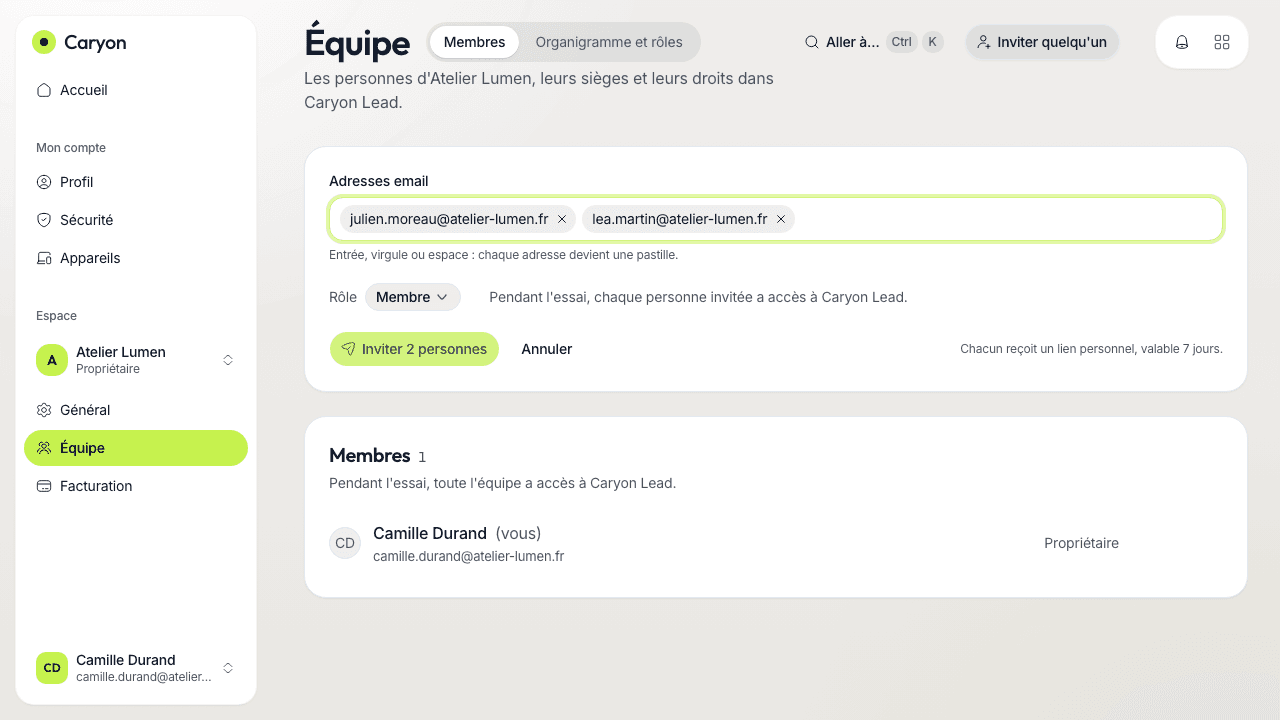
Enter one or more addresses: press Enter, a comma or a space between two addresses. You can also paste a whole list, every address is recognised.
Choose the role
- « Membre » (Member) — uses Caryon Lead, without managing the workspace;
- « Administrateur » (Administrator) — also manages the team and billing. Only the owner can appoint an administrator.
Send
Each person receives an email with an invitation link. A mistyped address, or one already in the workspace, stays in red with the reason, without holding back the others.
Access to Caryon Lead: seats
- During the trial, every invited person has access to Caryon Lead: nothing to choose.
- Once subscribed, access is per seat. Tick « Siège Caryon Lead » (Caryon Lead seat) when inviting: the seat is given when the person accepts. If no seat is free, the person joins the workspace without a seat, and you can add one when they arrive.
A member without a seat can click « Demander un siège » (Request a seat): the owner and the administrators are notified.
On the invited person's side
They open the link received by email:
- without a Caryon account, they enter their first name, last name and a password (or choose « Continuer avec Google ») on a single screen. Their address is already verified by the link: Caryon Lead opens right away;
- with an account, one click on « Rejoindre » (Join) is enough.
Follow up on invitations
The « Invitations » card of the Team page lists pending and expired invitations. For each one:
- « Renvoyer » (Resend) — sends a new link (the old one stops working);
- « Révoquer » (Revoke) — cancels the invitation.
To remove someone from the workspace, use « Retirer » (Remove) on their line in the « Membres » (Members) card. You have a few seconds to undo.
A question not answered here? Write to us at contact@caryon.app.