Install the Caryon Lead extension
Install the extension in Chrome, Edge or Brave to add a contact from their LinkedIn profile in one click.
The Caryon Lead extension opens beside LinkedIn. On a person's profile, it tells you whether they are already in your workspace, and lets you add them in one click — with their company and department guessed.
Supported browsers
The extension installs on a computer, in Chrome, Edge, Brave or another Chromium browser. It does not exist for Firefox, Safari or on a phone.
Install and connect the extension
Open the install page from Caryon Lead
In Caryon Lead, open « Réglages › Intégrations » (Settings › Integrations), « Navigateur » (Browser) group, and click « Installer l'extension » (Install the extension). A notice at the top right of the screen also offers it while the extension is not installed.
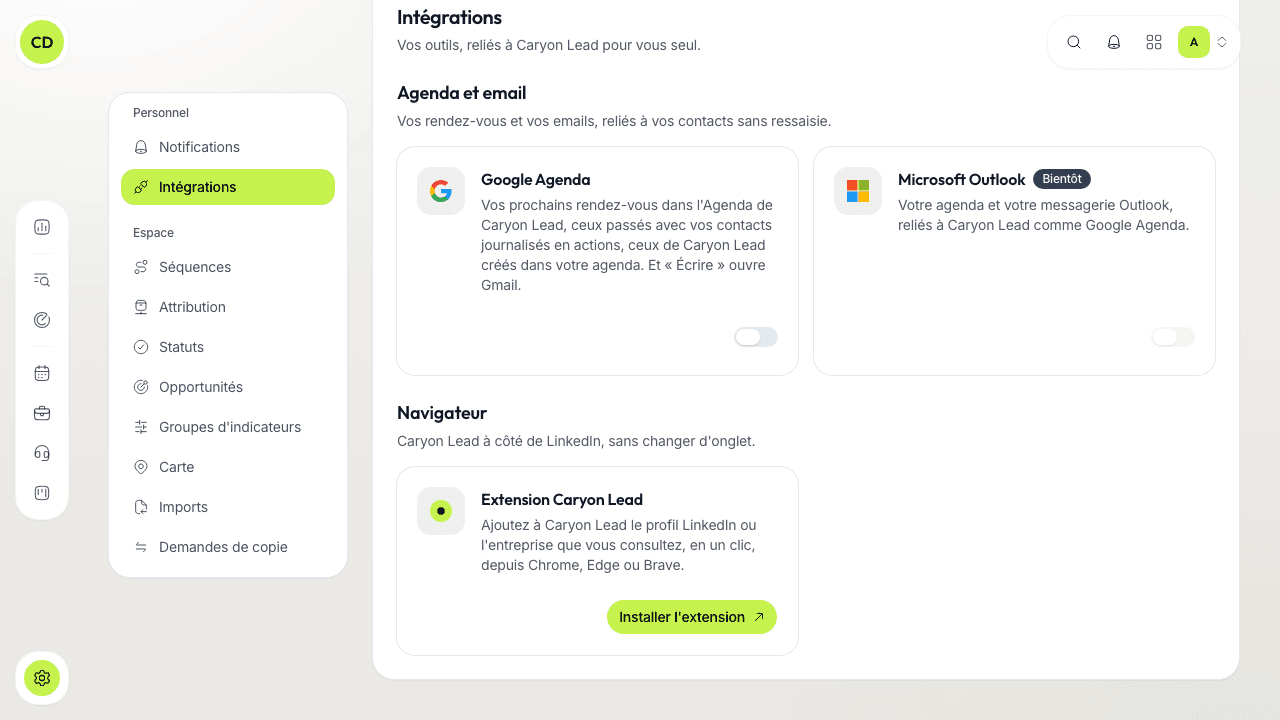
The extension's page opens in your browser's extension store: add it to the browser.
Pin it
Click the extensions icon (the puzzle piece) in the browser bar, then the pin beside Caryon Lead: its icon then stays visible.
Sign in
Click the Caryon Lead icon: a panel opens on the side. Choose « Se connecter avec Caryon ID » (Sign in with Caryon ID), then « Autoriser l'extension » (Allow the extension) in the tab that opens.
The connection lasts 90 days. If you have several workspaces, pick at the top of the panel the one where the extension saves your contacts.
Add a contact from LinkedIn
- Open the person's LinkedIn profile.
- Beside their name, a badge reads « Dans Lead » (In Lead) if they are already in your workspace, or « Ajouter à Lead » (Add to Lead) otherwise. Click it to open the panel.
- The panel shows what will be added: first name, last name, job title, company, department, site and photo. Fix any value in place if needed.
- Click « Ajouter à Caryon Lead » (Add to Caryon Lead).
On a LinkedIn company page, the panel suggests the matching legal entity: « Ajouter au portefeuille » (Add to portfolio) adds it to your companies.
What the extension never does
It only reads the page you are viewing, one person at a time: no list import, no automatic browsing, no message sent on your behalf. In LinkedIn messaging, it only logs the messages exchanged with your contacts (see Prospect from LinkedIn with the extension). Email and phone numbers are filled in afterwards on the contact's record.
Disconnect the extension
In the panel, open the account menu then « Déconnecter l'extension » (Disconnect the extension). You can also cut a browser's access from Caryon ID, « Appareils » (Devices) page.
A question not answered here? Write to us at contact@caryon.app.