Get to know Caryon Lead
Find your way around Caryon Lead — the menu, the top bar, your account and the keyboard shortcuts.
Caryon Lead is your team's prospecting tool: you find companies, follow them in your portfolio, schedule your actions and move your opportunities forward. This page shows you where everything is. The app is in French, so the names of its buttons and menus are quoted in French, followed by their translation.
The menu
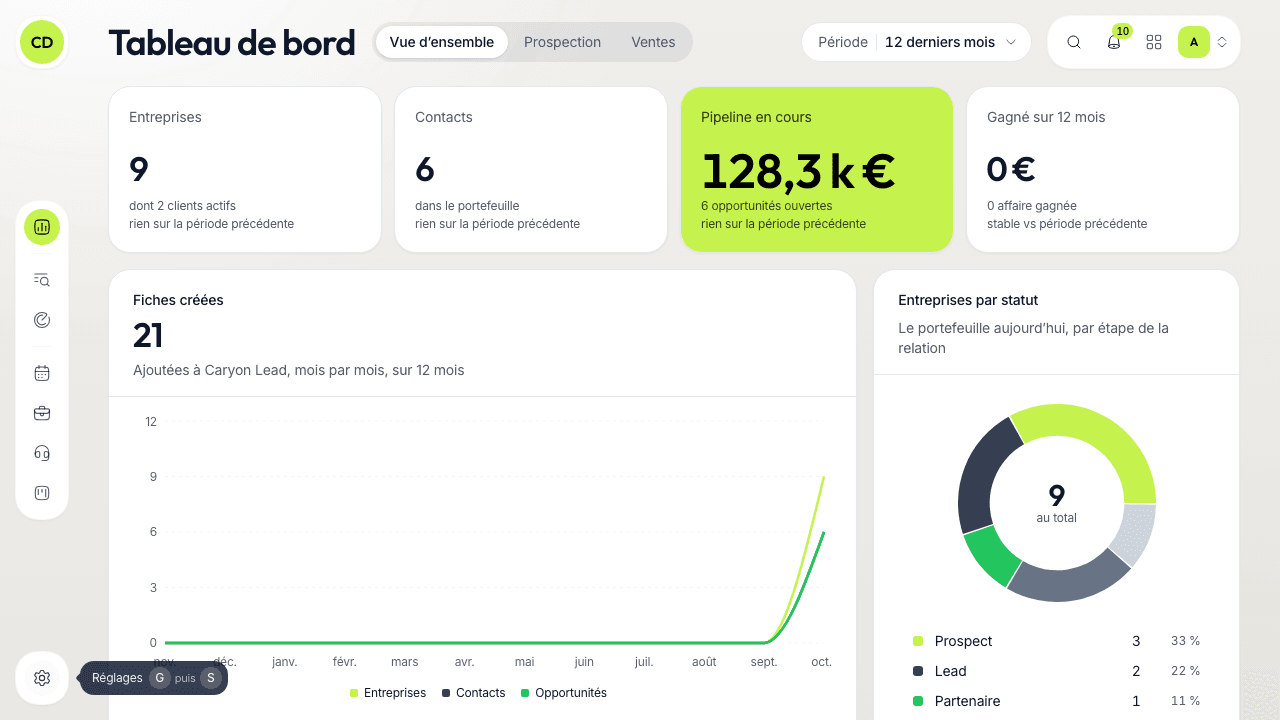
The menu is on the left of the screen, a column of icons whose name appears when you hover over them. Its entries are grouped by use, a line separating each set:
| Set | Entries | What for |
|---|---|---|
| To steer (« Piloter ») | « Tableau de bord » (Dashboard) | Measure your activity and your sales (read your dashboard) |
| To find (« Trouver ») | « Recherche d'entreprises » (Company search), « Radar » | Find new companies to prospect |
| To work (« Travailler ») | « Agenda », « Portefeuille » (Portfolio), « Prospection », « Pipeline » | The everyday pages: your actions (the Agenda), your companies and contacts, your calls (the call queue), your opportunities |
| Bottom of the menu | « Réglages » (Settings) | Your preferences and the workspace's (notifications, integrations, sequences, statuses, imports…) |
An entry's tooltip also reminds you of its keyboard shortcut. On a phone, the menu drawer names the sets « Trouver » and « Travailler ».
The bar at the top right
One capsule holds four tools:
- Search (magnifier, or ⌘K on Mac, Ctrl K on Windows): type a contact's or company's name, a SIREN or the name of a page to jump straight to it. It also offers commands, such as « Nouvelle action » (New action).
- Notifications (bell): what is assigned to you — a company, an opportunity, an action — and the reminders that concern you.
- The app switcher (« Changer d'application » — Switch app): move from one Caryon tool to another. Caryon Pay, the invoicing tool, is marked « Bientôt » (Coming soon) there. Your account and subscription are managed in Caryon ID, from « Gérer mon compte » (Manage my account, below).
- The workspace: if you belong to several workspaces, this is where you switch. Each workspace's data stays separate.
Your account
Click your photo (or your initials) at the top of the menu: the « Mon compte » (My account) window opens. It shows who you are, your role and your workspace, with three buttons:
- « Aide » (Help): opens this help center;
- « Gérer mon compte » (Manage my account): opens Caryon ID in a new tab (password, photo, subscription…);
- « Se déconnecter » (Sign out).
On a phone
On a small screen the menu folds into a drawer: tap « Ouvrir le menu » (Open the menu), at the top left. Your photo and its account menu sit beside the drawer's title.
Move faster with the keyboard
Two keys in a row are enough to change page: G then a letter.
| Keys | Page |
|---|---|
| G then D | Tableau de bord |
| G then E | Recherche d'entreprises |
| G then R | Radar |
| G then A | Agenda |
| G then F | Portefeuille |
| G then P | Prospection |
| G then I | Pipeline |
| G then S | Réglages |
A few shortcuts work everywhere: P for « Nouvelle action », S for « Lancer la session d'appels » (Start the call session), ⌘K (Ctrl K) for search.
Every shortcut, on screen
Press ?: the « Raccourcis clavier » (Keyboard shortcuts) window lists those of the page you are on, then those that work everywhere. Keys never trigger while you are typing in a field.
Go further
A question not answered here? Write to us at contact@caryon.app.