Plan your day with the Agenda
Schedule your actions in one sentence, find the day's ones and close them with a tick.
The Agenda (« Agenda » in the left-hand menu, key G then A) gathers everything you have to do: calls, meetings, emails, follow-ups, tasks. It has two tabs.
| Tab | What for |
|---|---|
| « Aujourd'hui » (Today) | Your day: what is planned today, what was planned earlier, what is planned in the next 7 days. |
| « Toutes les actions » (All actions) | The full view: every action, past and upcoming, with its history and filters. |
Where are the prospecting calls?
The calls of the prospecting queue are not in the Agenda: they have their own page, « Prospection ».
Your day: the « Aujourd'hui » tab
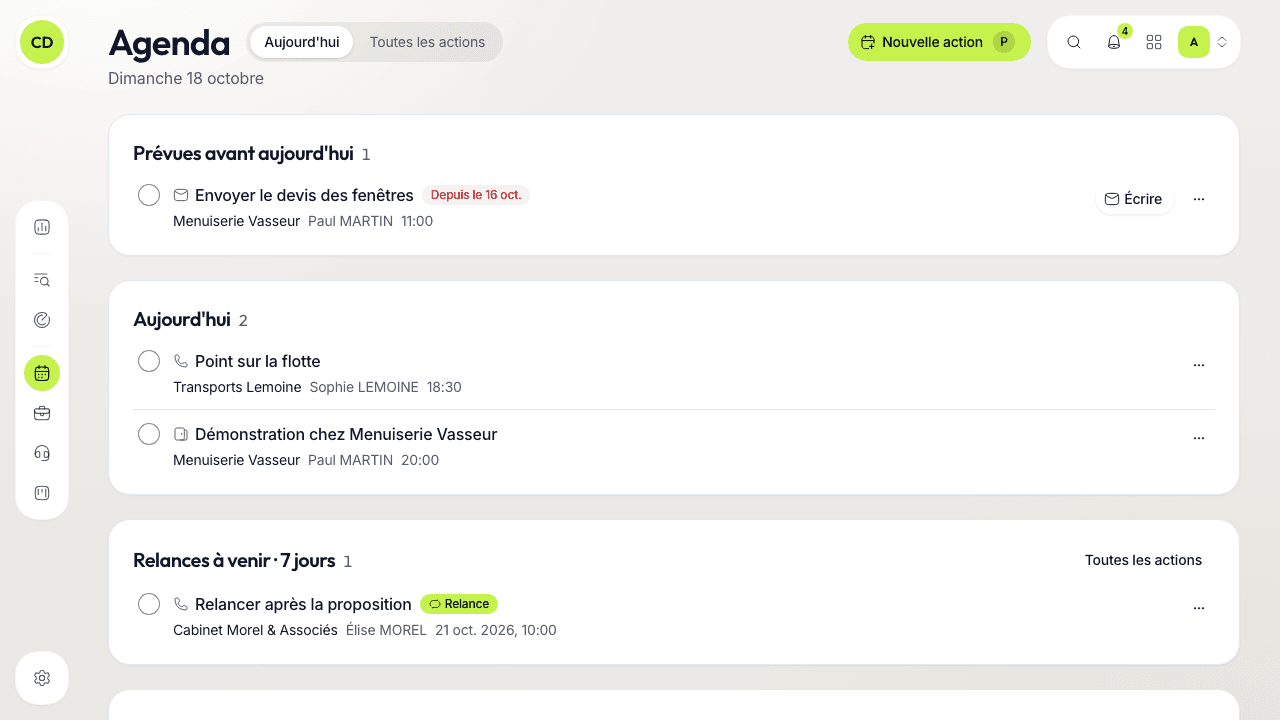
Read it from top to bottom:
- « Prévues avant aujourd'hui » (Planned before today): what was not done on its planned day. Each line says since when (« Depuis le 10 oct. » — since 10 Oct.).
- « Aujourd'hui »: the day's actions, with their time.
- « Relances à venir · 7 jours » (Upcoming follow-ups): what is planned in the next 7 days, follow-ups and other actions.
- « Agenda Google »: your events for the next 7 days, once Google Agenda is connected in « Réglages › Intégrations » (Settings › Integrations); until then, an invitation to connect it.
Once everything is done, a « Journée bouclée » (Day wrapped up) card replaces the first two sections, with the number of actions done and « Préparer la suite » (Prepare what's next), which opens « Toutes les actions ».
During the first 30 days of a workspace, a « Premiers pas » (First steps) line guides you through a few steps (follow your first targets from the Radar, install the extension, make a first call, connect Google Agenda). « Masquer » (Hide) puts it away for good.
Schedule an action
Open « Nouvelle action »
Click « Nouvelle action » (New action) at the top of the Agenda, or press P from anywhere. You also find it in the « … » menu of a company's record and of a contact line, and in search (⌘K).
Build the sentence
The window shows not a form but a sentence, for example « Appeler Paul Martin chez Acme demain à 09:00 » (Call Paul Martin at Acme tomorrow at 09:00). Each word is a choice: click it to open its small list.
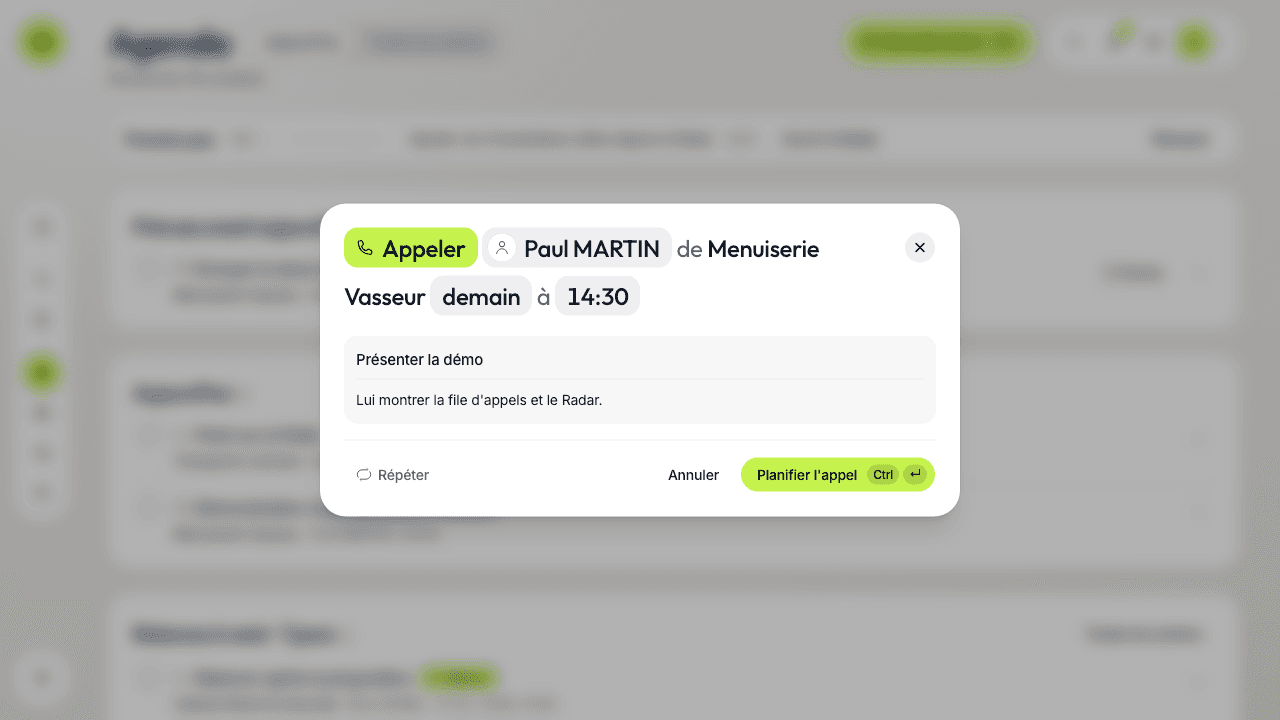
- The verb sets the type of action (see below).
- The person: search for a contact (their photo, job title and company show) or for a company alone. A task can have no one.
- The day and time: a new action starts at the next half hour, or tomorrow at 09:00 after 5 pm.
- « Répéter » (Repeat), at the bottom, makes it daily, weekly or monthly.
- When the company has open opportunities, « Opportunité » lets you attach the action to one.
Confirm
The button says what it does: « Planifier l'appel » (Schedule the call), « Planifier le rendez-vous » (Schedule the meeting)… The action appears in the Agenda on the chosen day.
The tense of the sentence follows the chosen moment
Pick a time that has already passed: the sentence goes to the past (« J'ai appelé » — I called), the button becomes « Noter l'appel » (Log the call) and you record an exchange that took place instead of scheduling one.
The verbs
| Verb | Type of action |
|---|---|
| « Appeler » (Call) | A call |
| « Rendez-vous » (Meeting, with) | A meeting |
| « Relancer » (Follow up) | A follow-up, by email, by call, by LinkedIn message or by SMS |
| « Écrire » (Write, to) | An email |
| « Envoyer un message » (Send a message, to) | A LinkedIn message or an SMS |
| « Envoyer une proposition » (Send a proposal, to) | A commercial proposal |
| « Une tâche » (A task, for) | A free task, the only type that needs no company |
| « Une note » (A note, about) | A note |
A follow-up is not a type of its own: it is a call, an email or a message whose purpose is to get back to someone. It carries the « Relance » label wherever you read it. A LinkedIn message or an SMS is always sent by you: Caryon Lead reminds you, you send it, you tick it.
Several people at a meeting
After a meeting's contact, click the small « + » (« Ajouter une personne » — Add a person): the list offers the company's other « Contacts » and your « Collègues » (colleagues). The meeting then shows in the timeline of every contact you added. If Google Agenda is connected, an event is created in your calendar with these people as guests; Google does not write to your contacts, so send the invitation from Google Agenda yourself if you want to.
Close an action with a tick
Every planned action starts with a round tick.
- A meeting, an email, a follow-up, a task…: one click on the tick marks it done. A message offers « Annuler » (Undo) for a few seconds.
- A call: the tick opens a window with the call's sentence, its notes and, at the bottom, « Ensuite » (Next), which schedules what follows:
- « Rien de prévu » (Nothing planned) closes the call;
- « À rappeler » (To call back) asks when, then schedules the same call at that moment;
- « RDV pris » (Meeting booked) asks when, then schedules the meeting.
- A ticked meeting offers to open an opportunity at that company: « Ouvrir une opportunité » (Open an opportunity), or « Ignorer » (Ignore).
To close without a mouse: J and K move from one action to the next, X ticks, Enter opens the contact's record, R opens the menu on « Reporter ».
The « … » menu of a line
« Modifier l'action » (Edit the action), « Reporter » (Postpone: Demain — tomorrow, Après-demain, Lundi, Dans une semaine — in a week, or « Autre date… » — another date; days off are not offered and the action keeps its time), « Annuler l'action » (Cancel the action) and « Supprimer » (Delete). Clicking an action's title also opens its sentence to edit it. A planned email action whose contact has an address (a follow-up by email included) carries an « Écrire » (Write) button: it opens a draft in Gmail or Outlook.
Find and sort: « Toutes les actions »
This tab lists every action (except the calls of the prospecting queue), 50 per page. A search bar (« Titre, entreprise ou contact » — Title, company or contact, key /) and filters:
| Filter | Choices |
|---|---|
| Type | The action types (« Tous les types » by default) |
| État (Status) | « À faire » (To do), « Prévues avant aujourd'hui », « Faites » (Done), « Annulées » (Cancelled) |
| Responsable (Owner) | « Moi » (Me) by default; a colleague or « Toute l'équipe » (The whole team) if people report to you |
| Entreprise (Company) | The companies that have actions |
| Période (Period) | Two dates on the calendar |
| Tri (Sort) | « Par date », « Ajoutées récemment » (Recently added) or « Par entreprise » (By company) |
What you see depends on your role: you do not see the actions of a colleague outside your scope.
Go further
A question not answered here? Write to us at contact@caryon.app.