Track your opportunities in the pipeline
Open an opportunity, move it from stage to stage on the board and keep an eye on the ones that are sleeping.
The pipeline tracks your deals in progress, from the first contact to the signature. Each opportunity is attached to a company and to one of its contacts. Open it from the Caryon Lead menu: « Pipeline ».
Create an opportunity
Start the creation
Click « Nouvelle opportunité » (New opportunity) at the top of the pipeline (or press N), the + of the first column, or « Nouvelle opportunité » in the « Opportunités » tab of a company record.
Complete the sentence
The opportunity is said in one sentence: « Nouvelle opportunité [name] de [company] avec [contact] pour [amount], signature [date] » (New opportunity [name] from [company] with [contact] for [amount], signing [date]). The name, the company and the contact are required; the missing token turns red. For a contact who does not exist yet, pick « Nouveau contact… » (New contact) in the list: first and last names are typed in the sentence. The amount and the signing date can wait.
Confirm
Click « Créer l'opportunité » (Create the opportunity) (or ⌘↵). A new opportunity always enters by the first stage of the pipeline.
After a meeting
When you tick a meeting as done, Caryon Lead asks: « Vous avez vu Paul MARTIN. Ouvrir une opportunité chez Acme ? » (You saw Paul MARTIN. Open an opportunity at Acme?). « Ouvrir une opportunité » unfolds the sentence, already filled in with the person you saw and the meeting attached. If the company already has an opportunity in progress, « Rattacher à « … » » (Attach to) attaches the meeting to it. « Ignorer » (Ignore) closes the suggestion.
The board
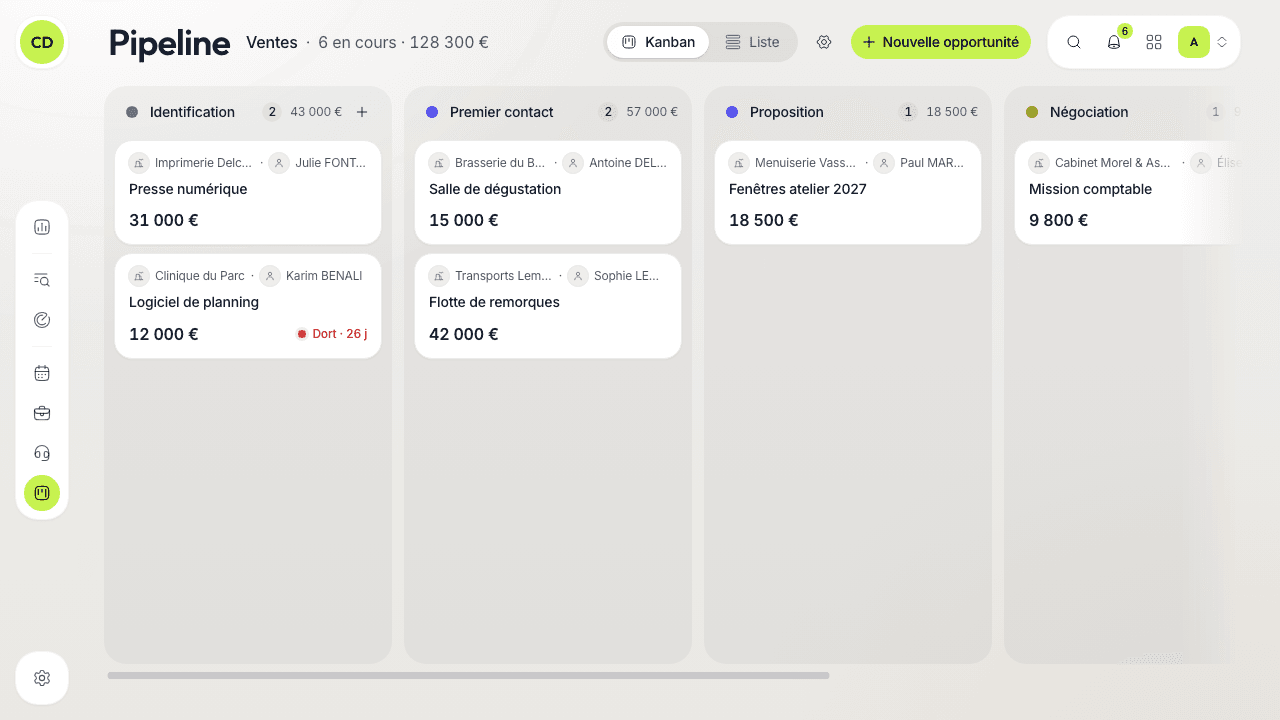
The columns are the stages of the pipeline. To begin with: « Identification », « Premier contact » (First contact), « Proposition », « Négociation » (Negotiation), then the two closing stages « Gagné » (Won) and « Perdu » (Lost). Each column header gives its name, the number of opportunities and their total amount.
Each card shows the company and the contact, the name of the opportunity and its amount. To move it forward, drag it to another column (on a touch screen, a long press picks it up). Dropped in « Gagné » or « Perdu », it is closed and dated; moved back to a stage in progress, it reopens.
A click on a card opens its panel: one sentence sums up the opportunity (« 145 000 € en Négociation, signature 2 nov., avec Paul MARTIN, suivie par Camille Durand » — €145,000 in Négociation, signing 2 Nov., with Paul MARTIN, followed by Camille Durand), and each value is edited by clicking it. The panel also lists the « Prochaine étape » (Next step: the planned actions), the « Interlocuteurs » (Contacts involved) and the reason for a loss.
The « Liste » (List) button in the header replaces the board with a table of rows, with a search (« Opportunité ou entreprise »), filters (stage, owner, expected close, company) and sorting by « Dernière activité » (Last activity), expected close, amount, name or « Ajoutée récemment » (Recently added). « Kanban » takes you back to the board.
Freshness: spot what is sleeping
Each opportunity remembers the last thing done for it: its opening, a change of stage, a done action attached to it. A coloured dot tells its state: fresh, cooling down, or sleeping. On the board, only the sleeping card shows, in red: « Dort · 47 j » (Sleeping · 47 d). By default, an opportunity is fresh up to 7 days without activity and sleeps beyond 21 days; administrators set these thresholds.
An action only refreshes the opportunity it is attached to. An action on a contact is attached to their opportunity in progress (the most recent if they have several); you can correct it in the action's sentence.
Several pipelines
For deals that do not follow the same path (partnerships, renewals…), a workspace can hold several pipelines, each with its own stages and opportunities — depending on your plan, see Caryon ID (« Facturation › Abonnements »). As soon as there are at least two, the button beside the pipeline's name opens the list: pick one, and Caryon Lead remembers it for your next visit. Owners and administrators create one with « Nouveau pipeline… » (New pipeline), in the « ⋯ » menu of « Réglages › Opportunités » (Settings › Opportunities). To move an opportunity from one pipeline to another, change its stage in its panel: the field also offers the stages of the other pipelines.
Set up stages and fields
Owners and administrators set up the pipeline in « Réglages › Opportunités » (Settings › Opportunities), or with the « Régler les étapes » (Set up the stages) button in the header. There they rename stages, change their colour and order, add a stage with « Ajouter une étape », and rename or delete a pipeline (never one that still holds opportunities) from the « ⋯ » menu beside its name. The first stage is the entry stage: it can be renamed but does not move.
With the Business plan, the fields of an opportunity are theirs too: beyond the amount and the signing date, they add the fields of their choice (text, number, date, checkbox, list…), which everyone fills in the panel.
Stage conditions
With the Business plan, if administrators turn on « Conditions de passage » (Stage conditions) in « Réglages › Opportunités », a stage can require fields before an opportunity enters it. A small barrier appears in the header of such a column (« Pour entrer : TCV, Signature » — To enter). When you drag an opportunity to that stage and information is missing, a short sentence asks only for what is missing.
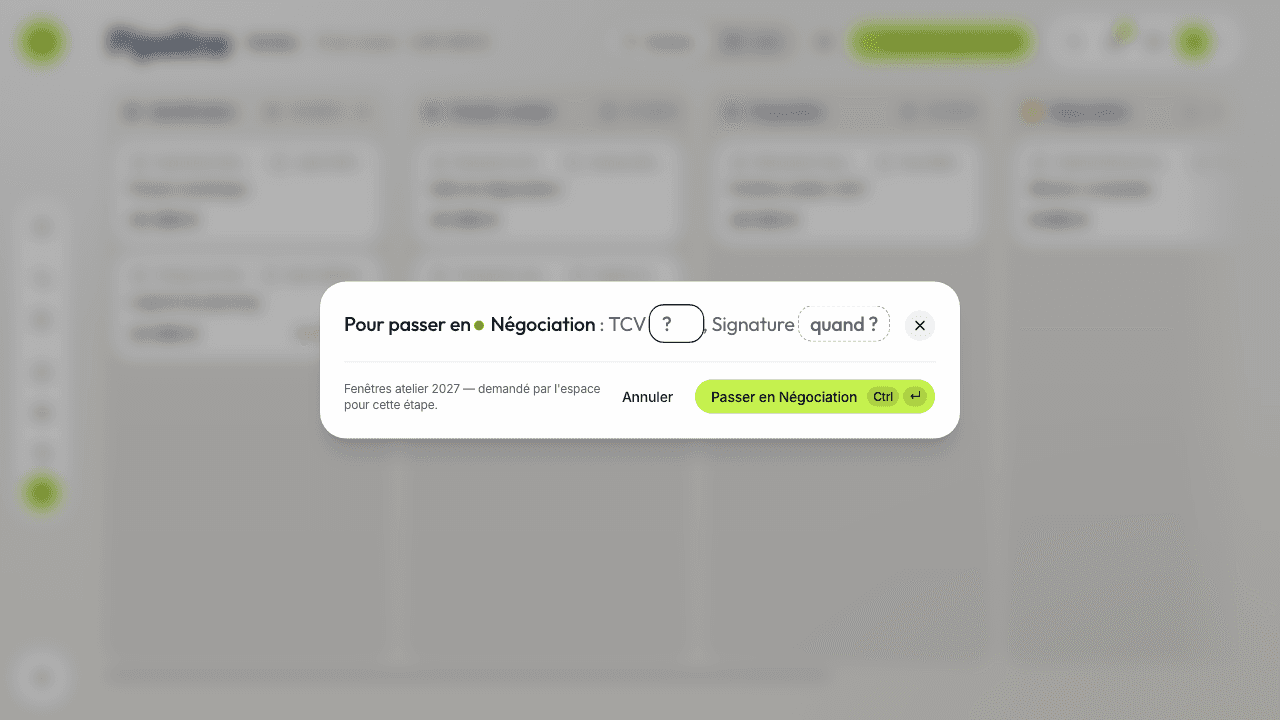
Fill them in then click « Passer en Négociation » (Move to Négociation): the information is saved and the opportunity changes stage. Esc or « Annuler » leaves it where it was. Moving back and moving to « Perdu » are never blocked.
Shortcuts
| Key | Action |
|---|---|
| N | New opportunity |
| ⌘K | Command palette, from any screen |
The ? key shows all the shortcuts of the screen.
A question not answered here? Write to us at contact@caryon.app.