Set up your workspace
Owners and admins, set up company assignment, statuses, the pipeline, the Radar indicators, the map and contact copies.
The « Réglages » (Settings) of Caryon Lead gather what is yours alone and what is shared by the whole workspace. Open them from the menu, at the very bottom: « Réglages ».
Two groups of settings
- « Personnel » (Personal): « Notifications » and « Intégrations » (Integrations). These are your choices, for you alone. See Choose your notifications and Connect Google Calendar and Gmail.
- « Espace » (Workspace): « Séquences » (Sequences), « Attribution » (Assignment), « Statuts » (Statuses), « Opportunités » (Opportunities), « Groupes d'indicateurs » (Indicator groups), « Carte » (Map) and « Imports », plus « Demandes de copie » (Copy requests) for owners and admins. What is set there applies to the whole team.
Who can set what
- The workspace owner and admins edit the statuses, the pipeline and its stages, the map and the copy requests.
- Other members open these tabs read-only: they see the settings without being able to change them.
- Assignment rules are written by any role that can edit companies; others read them.
- What each person sees of companies, contacts, actions and opportunities depends on their role and scope: by default, their own items and those of their team. Roles and the hierarchy are managed in Caryon ID.
Assign new companies automatically
In « Attribution », rules decide who receives each company that enters the portfolio (search, Radar, extension).
- Click « Nouvelle règle » (New rule): it starts switched off.
- Name it, choose its criteria (departments, business sectors, headcount ranges, tags) and the member who receives the companies. Several values of one criterion mean "either one"; several criteria, "all at once".
- Switch it on. Rules are read in order and the first match wins: change the order with the arrows. A rule with no criteria takes everything left, so put it last.
With no matching rule, the company stays with whoever added it. The chosen member is notified. « Appliquer aux N entreprises sans responsable » (Apply to the N companies without an owner) sorts, in one click, those that still have nobody.
Choose the company statuses
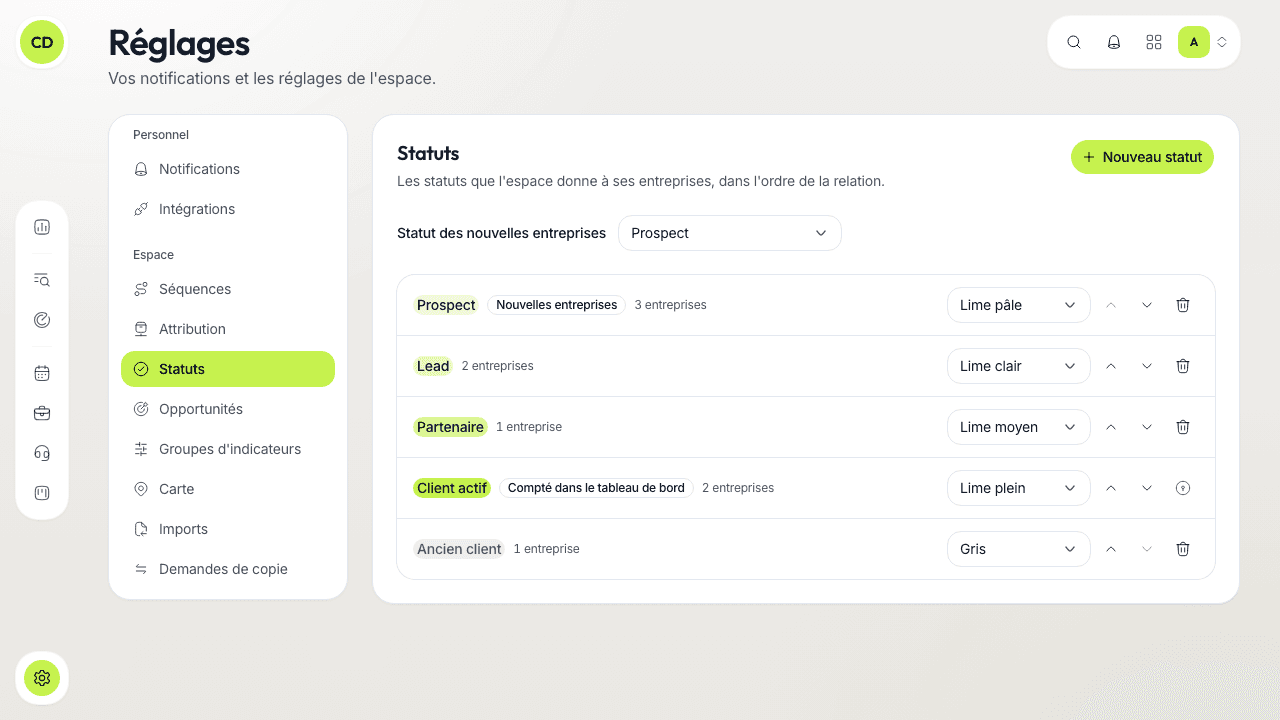
In « Statuts », each workspace has its own list. To begin with: Prospect, Lead, Partenaire, Client actif, Ancien client.
- Rename a status in place, change its tint, reorder them with the arrows (20 at most); « Nouveau statut » (New status) adds one.
- « Statut des nouvelles entreprises » (Status of new companies): the one a company gets when it enters the portfolio.
- The status marked « Compté dans le tableau de bord » (Counted in the dashboard), Client actif to begin with, gives the dashboard's client count: it can be renamed, not deleted.
- Deleting a status asks which status its companies should move to.
Set up the pipeline
In « Opportunités », you set up the pipeline your salespeople find ready to use (see Follow your opportunities in the pipeline):
- « Pipeline et étapes » (Pipeline and stages): name, colour and order of the stages, at most one won and one lost stage. The first stage is the entry stage: only its name and colour change. The « Régler les étapes » (Set up the stages) button in the Pipeline header leads straight there.
- « Champs d'une opportunité » (Opportunity fields): switch on, rename, add (« Nom du nouveau champ », then « Ajouter le champ ») or delete the fields specific to your business.
- « Conditions de passage » (Entry conditions): each stage can require some fields to be entered (« Exiger pour entrer », Require to enter). When off, everyone moves their opportunities freely.
- « Fraîcheur » (Freshness): the number of days without activity after which an opportunity is no longer fresh, then "sleeps".
Fields and entry conditions are part of the Business plan; the details are in Caryon ID.
The other workspace settings
- « Groupes d'indicateurs »: what the Radar reads (sources, territory, sectors) and how it scores each company. See Spot high-potential companies with the Radar.
- « Carte »: enter your agency's address in « Centre de la carte » (Map centre); the portfolio map opens on it. Without an address, it opens on France.
- « Imports »: the list of files imported into the workspace, newest first, with their report. See Import your companies and contacts.
- « Séquences »: the workspace's prospecting sequences. See Automate your follow-ups with sequences.
- « Demandes de copie » (owners and admins): when a member asks to copy contacts from the workspace to another of their workspaces, you see who, where to and which contacts, then choose « Accepter » (Accept) or « Refuser » (Refuse), with an optional message. Each copy is traced in the source workspace, and a counter flags pending requests.
A change is never lost silently
Each field is saved on its own as you type. If you leave the page before a save ends, Caryon Lead asks you to confirm.
A question not answered here? Write to us at contact@caryon.app.