Manage your company portfolio
Find, sort, tag and export the companies your team follows, one by one or in bulk.
The portfolio gathers the companies your workspace follows. Open it from the Caryon Lead menu: « Portefeuille » (Portfolio). It has two tabs, « Entreprises » (Companies) and « Contacts », each with its counter.
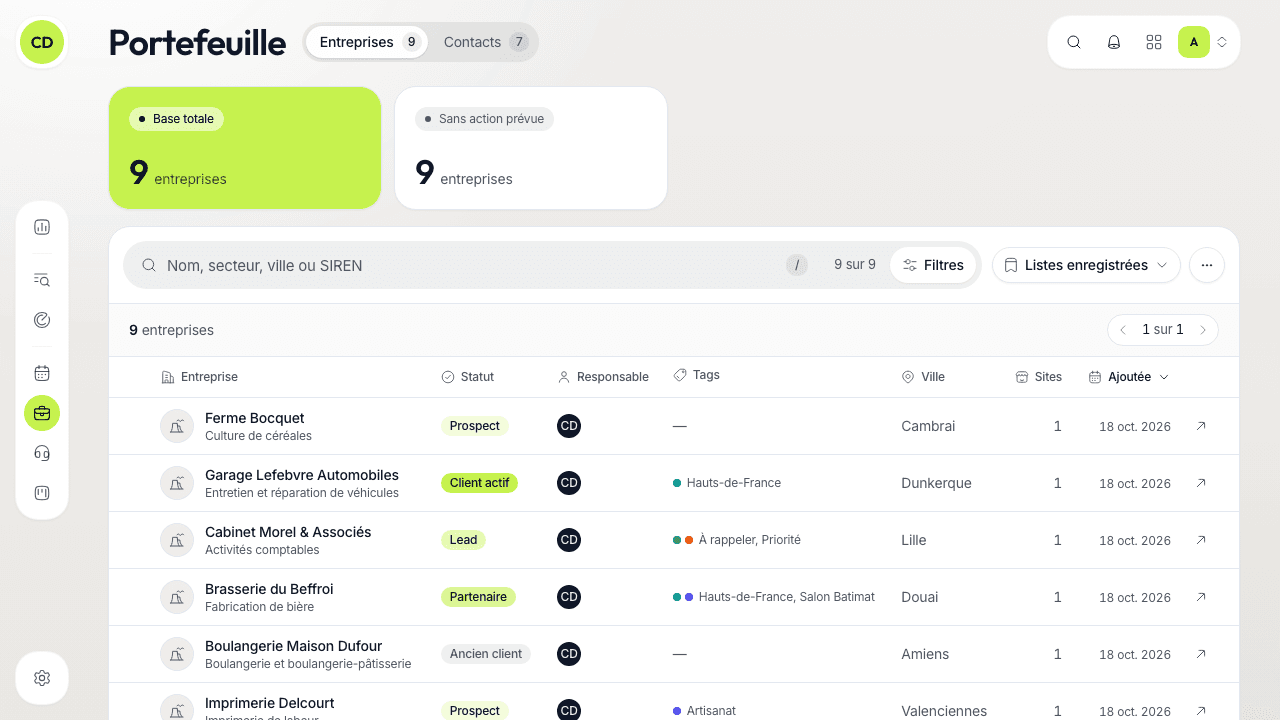
Read the list
Each row shows the company's logo and name (its business sector underneath), its status, its owner, its tags, its city, its number of sites and the date it was added. A Score column joins them once the Radar has scored companies of the portfolio. A click on a row opens the record (see the company record).
Two measures at the top give you the picture:
- « Base totale » (Total base): the number of companies followed. As soon as a search or a filter narrows the list, it becomes « Résultats du filtre » (Filter results).
- « Sans action prévue » (No action planned): the companies on which nobody in the team has a scheduled action. A click filters the table on them, a second click removes the filter.
To add companies, use « Recherche d'entreprises » (Company search) in the menu (see search companies) or « Importer un fichier » (Import a file) (see import your data).
Search, filter, sort
- Type in the large search field (the / key takes you there): name, sector, city or SIREN. It answers at every keystroke, ignoring case and accents. For tags, départements and the rest, use the filters.
- Click « Filtres » (Filters) to open the panel: one row per kind of filter, with its icon and name.
- Pick a kind to set its values, then go back to the list with « ‹ Filtres ».
The kinds offered: « Activité » (Business sector, by family), « Localisation » (Location: départements on the map or by name, regions, postcodes), « Taille » (Size), « Finances », « Tags », « Statut » (Status), « Responsable » (Owner), « Origine » (Origin: register record or manual entry), « Sans action prévue » and « Retirées » (Removed, offered once companies have been removed from the portfolio). Several choices of one kind add up; different kinds combine.
Each filter you set becomes a pill under the bar (« Statut · Client actif », « Tags · 2 »): click it to change the filter, its × to remove it. « Tout effacer » (Clear all) removes every filter and the search. The « Filtres » button shows the number of active filters.
To sort, click a column header; a second click reverses the order. The ⋯ menu (« Plus d'actions », More actions) lets you pick the number of rows per page with « Lignes par page » (30, 50 or 100).
Get a view back in one click
« Listes enregistrées » (Saved lists) keeps a combination of filters under a name, for you alone or shared with the team. To create one, set your filters then choose « Enregistrer la vue… » (Save the view) at the bottom of that menu. The search, filters, sort and page are also in the browser address: a copied link reopens the same list.
Statuses and tags
The status tells where the relationship stands. To begin with: Prospect, Lead, Partenaire (Partner), Client actif (Active customer), Ancien client (Former customer). To change a company's status, click it on its record; from the list, use the bulk action « Statut ».
The workspace owner and administrators adapt this list in « Réglages › Statuts » (Settings › Statuses): rename, add, change the tint or the order, or delete a status (its companies then move to another status you choose). The status « Client actif » feeds the dashboard; it can be renamed but not deleted. « Statut des nouvelles entreprises » (Status of new companies) picks the one every company gets when it enters the portfolio.
Tags are coloured labels specific to your workspace, on top of the business sector. Add them from the record (« Ajouter un tag », then « Nouveau tag » to create one), manage them from the record's ⋯ menu with « Gérer les tags », and apply them in bulk from the list.
Act on several companies at once
Tick some rows
A round box appears when you hover each row. The box in the header ticks the whole displayed page.
Extend to the whole filter if needed
When the whole page is ticked and the list holds more, the bar offers « Sélectionner les N » (Select all N): every company of the search and filters, beyond the page.
Pick an action in the bottom bar
The bar shows the number of companies selected and offers:
- « Attribuer » (Assign): you, a colleague or nobody;
- « Statut »: one of the workspace's statuses;
- « Tags »: « Ajouter un tag » (Add a tag) or « Retirer un tag » (Remove a tag), without touching the companies' other tags;
- « Retirer du portefeuille » (Remove from the portfolio), after confirmation (if your role allows removing companies).
« Vider » (Clear) drops the selection.
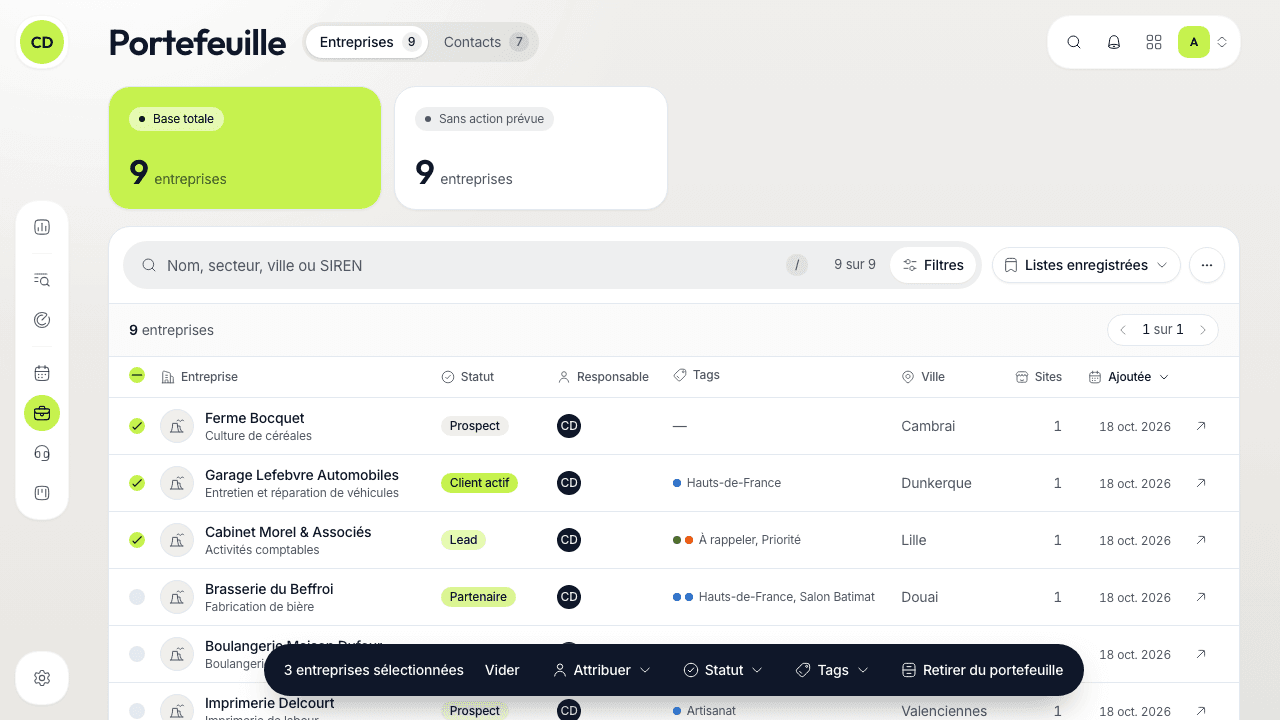
The result shows at once (« Tag « Salon » ajouté à 12 entreprises. » — Tag added to 12 companies) and the selection stays so you can chain a tag, then a status, then an owner. One action covers 1,000 companies at most; beyond that, only the export remains.
Removing deletes nothing
« Retirer du portefeuille » takes the company out of the lists, but its contacts, actions and opportunities are kept. A message offers « Annuler » (Undo) right after. Later, find the company with the « Retirées » filter, and its record offers « Remettre au portefeuille » (Put back in the portfolio).
The actions depend on your role: without the right to edit companies, you do not see « Attribuer », « Statut » or « Tags ».
Export
The ⋯ menu offers « Exporter les N lignes » (Export the N rows): a CSV file ready for French Excel, with exactly the rows of the view (search, filters, sort), all pages included. If rows are ticked, it becomes « Exporter la sélection (N) » and the file holds only those. The « Contacts » tab has the same menu and the same export.
The portfolio map
The map shows the sites of the companies in the list. Nearby pins group into pills that count companies (« 12 entreprises, zoomer pour les voir » — zoom in to see them); a click zooms in. It follows your searches and filters. The « Agrandir la carte » (Enlarge the map) button opens it full screen, with the search and filters on top; « Fermer » (Close, or Esc) takes you back to the list. It opens centred on the address the workspace managers chose in « Réglages › Carte » (Settings › Map) (see workspace settings).
Shortcuts
| Key | Action |
|---|---|
| / | Go to the search |
| J / K | Next / previous row |
| X | Tick the row |
| Enter | Open the record |
The ? key shows all the shortcuts of the screen.
A question not answered here? Write to us at contact@caryon.app.