Connect Google Calendar and Gmail
Link your Google Calendar to Caryon Lead to see your meetings, find them in your contacts' history, and write from Gmail.
Connecting Google Calendar saves you from retyping: your meetings show up in Caryon Lead, the ones you schedule in Caryon Lead show up in your calendar, and the writing buttons open a draft in Gmail.
Connect your Google Calendar
Open the integrations
In Caryon Lead, open « Réglages › Intégrations » (Settings › Integrations). The « Agenda et email » (Calendar and email) group holds the Google Agenda tile.
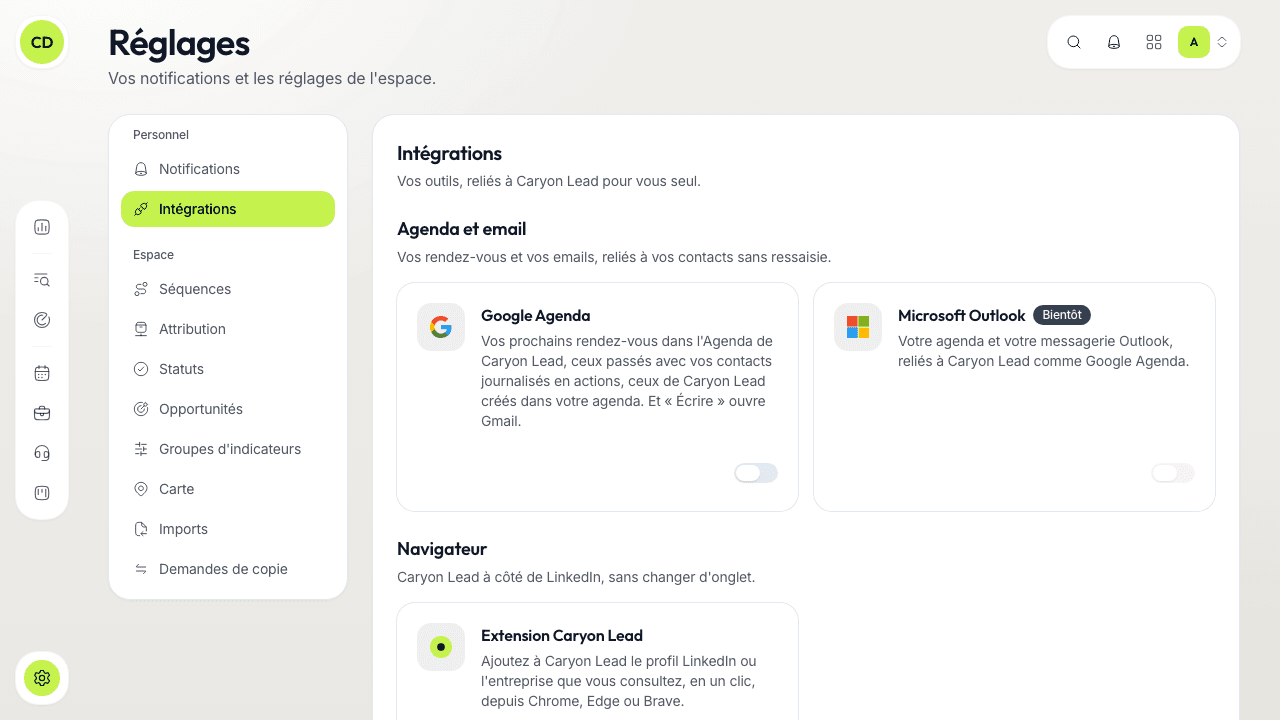
Turn the switch on
Google asks you to pick your account and to allow Caryon Lead. When you come back, a message confirms « Google Agenda est connecté » (Google Calendar is connected).
Choose what is synced
On the connected tile, the « Réglages » (Settings) button opens a window that recalls the account in use (« Connecté avec… », Connected with…) and holds two checkboxes, ticked by default. Untick the one you do not want.
For you alone, in this workspace
The connection is personal: it gives your colleagues no access. If you work in several workspaces, connect Google in each of them.
What Caryon Lead does with your calendar
- See your meetings in the Agenda. In the « Aujourd'hui » (Today) tab of the Agenda, the « Agenda Google » card lists your events for the next 7 days, with the followed contact among the guests and a link to the event in Google. Cancelled, declined or finished events are left out.
- Log past meetings (checkbox « Journaliser les rendez-vous passés avec mes contacts », Log past meetings with my contacts). A finished event (not cancelled, not declined by you, not all-day) with one of your contacts among the guests becomes a meeting done in their history, once only. If a meeting was already scheduled with them the same day, it is closed rather than duplicated. On connection, the previous 30 days are picked up.
- Create your meetings in Google (checkbox « Créer mes rendez-vous de Caryon Lead dans Google Agenda », Create my Caryon Lead meetings in Google Calendar). A meeting you schedule for yourself, on a date, becomes a one-hour event in your calendar, with the company, the contact and your notes in the description; the contact and other participants who have an email address are invited, unless they asked not to be contacted. Moving, editing or cancelling it in Caryon Lead updates or removes the event.
Caryon Lead touches no other event of your calendar. Google mails no guest for you: you decide, from Google Calendar, whether to send the invitation.
After an older connection
If your connection predates the option to create meetings, the checkbox is greyed out: click « Reconnecter » (Reconnect) in the window to give that permission.
Gmail: drafts, no reading
Caryon Lead does not read your mailbox, so it does not log your email exchanges automatically. Instead, the « Écrire à … » (Write to …) buttons (on a contact's line, on a planned « Écrire » (Write) action, in prospecting, in an opportunity's panel) open a draft in Gmail with the recipient already filled in, as soon as you have signed in with Google or connected your Google Calendar. Otherwise, they open Outlook on the web.
To keep a trace of an email you sent, note it with an action.
Disconnect Google
Turn off the switch of the Google Agenda tile. Meetings already logged in your contacts' history stay; the calendar itself never left Google.
If Google no longer gives access to your calendar (access removed, connection expired), the tile shows « À reconnecter » (To reconnect): open « Réglages », then « Reconnecter ».
And Outlook?
Microsoft Outlook is announced on the neighbouring tile, marked « Bientôt » (Soon).
A question not answered here? Write to us at contact@caryon.app.