Import your companies and contacts
Import an Excel or CSV file, map its columns, check the report, or copy contacts from another of your workspaces.
Coming from another tool, or holding a list in a spreadsheet? The import adds your companies, and your contacts if the file has any, without retyping them. The file decides: company columns alone import companies; as soon as a column names the people (first and last name, or full name), the import also creates the contacts and their companies.
Import a file
Open the import
In the portfolio (Companies or Contacts tab), open the « ⋯ » menu of the bar and choose « Importer un fichier » (Import a file). The wizard opens on a full page, with its steps at the top: Fichier (File), Colonnes (Columns), Valeurs (Values, only when needed), Revue (Review), Import. You need the right to add companies, and to add contacts for a file of contacts.
Drop your file
A CSV file (.csv, .tsv or .txt) or an Excel file (.xlsx, first sheet), up to 5,000 rows and 10 MB. A CSV's separator and encoding are recognised automatically. An old .xls file is refused: save it as .xlsx or .csv first. You need one row per company (or per contact, with the company columns repeated on every row). « Télécharger le modèle » (Download the template) gives you an example file.
The file is read in your browser. An export from HubSpot, Pipedrive, Salesforce, Axonaut or Sellsy, or from Caryon Lead itself, can be dropped as is.
Map the columns
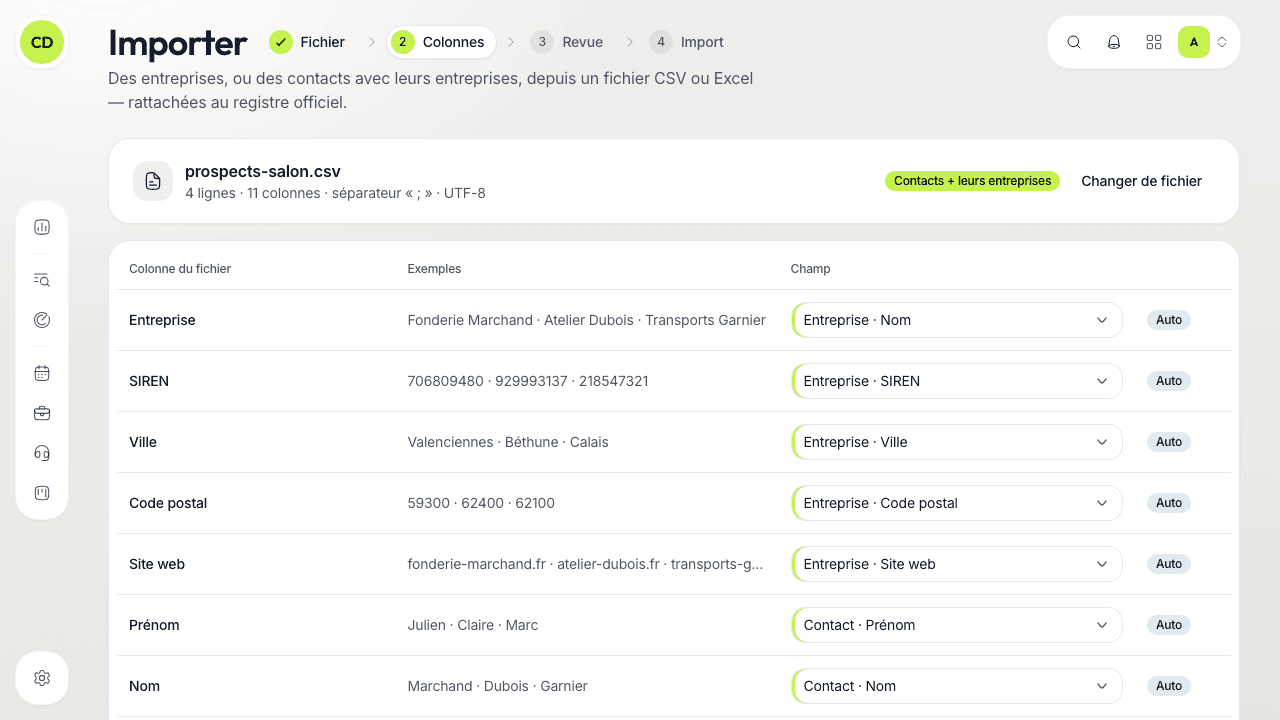
Each column of your file is shown with three of its values. Choose the Caryon Lead field it matches, or « Ignorer cette colonne » (Ignore this column). Columns recognised on their own carry the Auto badge; correct the ones guessed wrong. A field can only be filled by one column.
You need at least a SIREN, SIRET or company name column; for contacts, their first and last name (or full name, split automatically). A badge at the top says what the file imports: Entreprises (Companies), or Contacts + leurs entreprises (Contacts + their companies). Click « Continuer » (Continue), or « Rechercher les entreprises » (Look up the companies) when there is no next step.
Match the values
If the file has a status, owner or tags column, match each status in the file to a status of your workspace, and each owner to a member (recognised by email or name; otherwise the assignment rules apply). Tags that do not exist yet are created.
Check the review
Caryon Lead looks up each company — once, even if repeated on a hundred rows — by SIRET, SIREN, website, portfolio, then the official register. The review shows the companies recognised (« Entreprises reconnues »), those to settle (« À trancher ») and the not found (« Introuvables »). For each company to settle, pick among the candidates offered (name, city, SIREN), or ignore its rows. All must be settled before you continue.
Also choose what happens to what your workspace already has. For a company you already follow, the choice covers its status, owner, notes and LinkedIn page; for a contact, an existing record (same LinkedIn, same email, or same name in the same company):
| Choice | Effect |
|---|---|
| « Ignorer » (Ignore) | The existing record is not touched |
| « Compléter les champs vides » (Fill in empty fields), the default | Only what is empty gets filled |
| « Remplacer par le fichier » (Replace with the file) | The file's values overwrite those of the record |
In every case, an empty cell never erases a value, and tags are only added. A company entering the portfolio for the first time takes everything the file says.
Start the import
Click « Importer N lignes » (Import N rows). A progress bar moves along; « Mettre en pause » (Pause) stops it and « Reprendre » (Resume) restarts it. Keep the page open: if you close it, reopen it and the import picks up where it stopped, without writing anything twice. « Abandonner l'import » (Abandon the import) stops it before it has written anything.
For a match without hesitation
A SIREN or SIRET matches the row straight away. Otherwise Caryon Lead uses the name with the postcode or the city; the website helps to tell similar ones apart. No company is ever created by hand: it always comes from the official register.
Read the report
At the end, the report counts the companies added (« Entreprises ajoutées »), those already followed and updated (« Déjà suivies, mises à jour »), the ignored (« Ignorées ») and the rejected (« Rejetées »); for contacts, the contacts created (« Contacts créés »), completed, and the company changes. The « Voir le portefeuille » (See the portfolio) and « Voir les contacts » (See the contacts) buttons open the result.
Rejected or ignored rows are listed with their reason (« Motif »: invalid SIREN, missing first name, company not found…). « Télécharger (CSV) » (Download) gives these rows back with a last « Motif » column: fix them, then reimport them as they are.
If you made a mistake, « Annuler l'import » (Cancel the import) removes what the import created and nobody has changed since; what it completed or replaced is not put back as it was. A window first tells you what goes and what stays. You can cancel your own imports; owners and administrators can cancel any import of the workspace.
Find your past imports
In Réglages › Imports (Settings › Imports), the list of all the workspace's imports: date, source (file name), author, counts of created, completed, ignored and rejected, and state (« Terminé » — done —, « Abandonné », « Interrompu »…). « Rapport » reopens the report; « Reprendre » restarts an interrupted import (only its author). Rejected rows are kept for 90 days; the totals stay.
Copy contacts from another workspace
If you belong to several workspaces, you can bring contacts from one into another. In the « ⋯ » menu of Contacts, choose « Copier depuis un autre espace » (Copy from another workspace); the entry only appears if you have another workspace with Caryon Lead.
- On the « Copier des contacts » (Copy contacts) page, choose the workspace to copy from. Its contacts appear: filter them, tick the ones to copy (up to 1,000).
- Pills help you: « Déjà dans … » (already in …), « Entreprise à suivre » (company to follow), « Ne plus contacter » (do not contact).
- If you are an owner or administrator of the source workspace, click « Copier N contacts » (Copy N contacts). Otherwise click « Demander la copie » (Request the copy): the source workspace's owners and administrators are notified, and decide in Réglages › Demandes de copie (Settings › Copy requests) whether to « Accepter » (Accept) or « Refuser » (Refuse). You are notified of their answer; an accepted request is started with one click on « Lancer la copie » (Start the copy).
The copy brings the contact's whole record, but not its history (actions, opportunities). The company joins your portfolio, without the status, tags, notes or owner from the other workspace. A copy follows the same rules as an import: progress, report, history (« Copie depuis « X » ») and cancellation. Every copy is traced in the source workspace.
A question not answered here? Write to us at contact@caryon.app.