The company record
Everything your team knows about a company on one screen, editable in place, with its activity feed and its org chart.
The company record gathers what your team knows about a company: who it is, how to reach it, who works there, what happened and what is planned. Open it by clicking a row of the portfolio, a search result, or any link to the company.
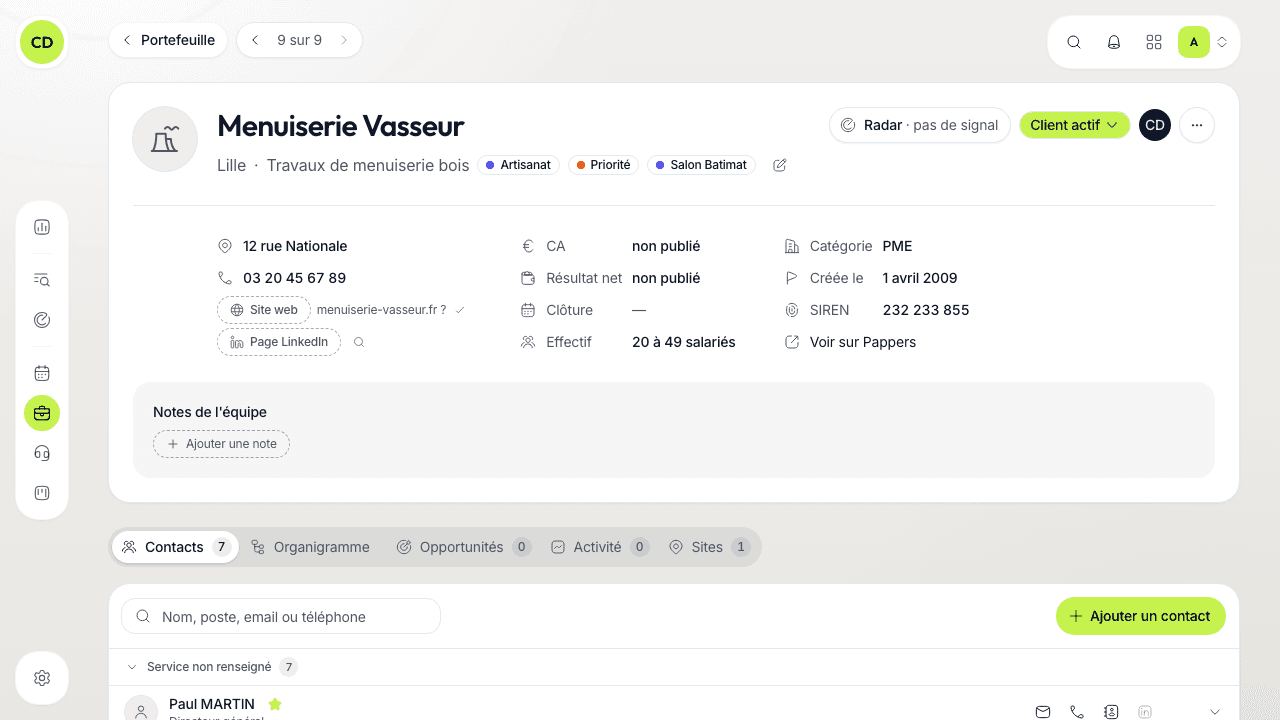
The header
The header fits on one card:
- the logo (found automatically on the company's website, a company icon until then) and the name;
- the status, the avatar of the owner (name on hover, a click changes it) and the Radar score when your role has access to it — a click opens the detail on the right without leaving the record;
- the ⋯ menu (« Plus d'actions », More actions): « Nouvelle action » (New action), « Définir le groupe » (Set the group, or « Changer le groupe »), « Gérer les tags » (Manage tags) and « Retirer du portefeuille » (Remove from the portfolio);
- under the name, the city, the sector, the group and the tags;
- the contact details (address, switchboard, website, LinkedIn page), the latest published accounts (revenue, net result, headcount) and the company's identity (category, creation date, SIREN or SIRET, « Voir sur Pappers » — See on Pappers);
- « Notes de l'équipe » (Team notes), which only the members of your workspace can read.
The previous and next arrows walk through the list you came from, with its filters and sort (« 3 sur 12 »). « Portefeuille » takes you back to it.
For a company with several establishments, a picker replaces the city: « Tous les sites » (All sites) or one site. Picking a site narrows the record to its details and its contacts.
Edit in place
There is no « Modifier » (Edit) button: you correct a value by clicking it, where it is shown. Enter or leaving the field saves, Esc cancels.
A missing piece of information is never an empty box: it is a dotted pill that says what to add (« Page LinkedIn », « Ajouter un tag », « Ajouter une note »). A click opens it. Beside a missing switchboard, website or LinkedIn page, a magnifier runs the search that finds it in a new tab. If contacts have a professional email, the website is suggested directly: you check it, then save it in one click.
Without the right to edit companies, you see the values but cannot change them.
Directory details are shared
The website and the switchboard come from the directory shared by every workspace. Filling in a value that was missing applies at once, and the Caryon team checks it afterwards. Replacing or clearing a value that is already there is a correction request: the record shows the proposed value followed by « en vérification » (under review) until the Caryon team answers, usually within one working day, and you are notified of its decision.
The tabs
| Tab | What you do there |
|---|---|
| Contacts | See the company's people, grouped by department, and add some (see below and contacts) |
| Organigramme (Org chart) | Draw who reports to whom |
| Opportunités (Opportunities) | See the company's and open one (see the pipeline) |
| Activité (Activity) | Read the company's feed and log an exchange |
| Sites | See the establishments as a list and on a map, and add some |
Add a contact
In the « Contacts » tab, click « Ajouter un contact » (Add a contact): an empty row unfolds at the top of the list, the cursor in « Prénom » (First name). Enter or Tab moves to the next field. As soon as the first and last names are filled, the contact is created and each field then saves in place. If a namesake already exists in the company, a message points it out and offers « Créer quand même » (Create anyway). Esc drops a row that is still empty.
The org chart
Each person is a card, linked to the person they report to. To build the tree:
- spot the person in the « À placer » (To place) column on the right: they have neither a superior nor a subordinate (general management aside, which shows at the top of the tree);
- drag them onto the person they report to: they settle underneath;
- to take them out of the tree, drag them onto the « À placer » column (their team follows).
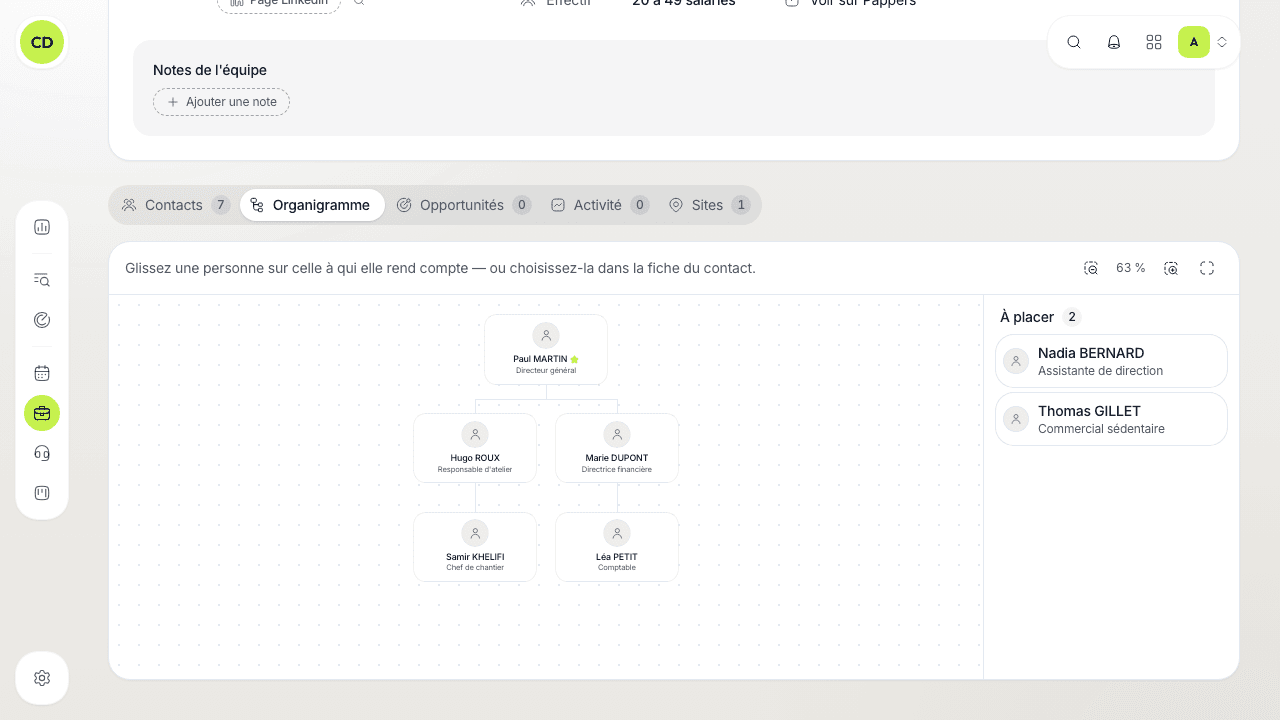
Without a mouse, the same link is chosen in the contact's unfolded record, in the « Rend compte à » (Reports to) field. A click on a card opens the person; the zoom buttons and « Agrandir l'organigramme » (Enlarge the org chart) help with large trees.
Groups of companies
A company can be the subsidiary of a parent company. In the ⋯ menu, « Définir le groupe » lets you type the name of a company you already follow, or keep the typed name as a group name. The record then shows « Filiale de … » (Subsidiary of) with a link, or the group name.
Add sites
In the « Sites » tab, « Ajouter des sites » (Add sites) lists the company's active establishments in the official register: tick the ones to follow. The button only exists for a company that has a SIREN.
The feed: log and plan
The « Activité » tab shows, newest first: the upcoming actions under « À venir » (Upcoming), the « Maintenant » (Now) line, then what happened day by day (calls, meetings, emails, notes, and the movements of the company's opportunities). Older ones unfold with « Voir les N plus anciennes » (See the N older ones).
To log an exchange or plan what comes next, click « Nouvelle action » in the « Maintenant » line — or one of the shortcuts « Appel » (Call), « Rendez-vous » (Meeting), « Email », « Note ». You compose a sentence: the verb, the person (or the company alone), the day and the time. A past time gives a done exchange (« J'ai appelé… » — I called), a future time a planned action. The button says what it does (« Noter l'appel », « Planifier le rendez-vous », « Enregistrer la note »); ⌘↵ (Ctrl+↵) saves it.
Shortcuts
| Key | Action |
|---|---|
| P | New action |
| N | Add a note (opens the Activity tab) |
| A | Dial the switchboard |
| ⌘K | Command palette |
The ? key shows all the shortcuts of the screen.
A question not answered here? Write to us at contact@caryon.app.