Manage your contacts
Add the people of a company, keep their numbers up to date, respect their consent and find the whole history.
A contact is a person at a company you follow. They have no page of their own: they are read on their company's record, in the « Contacts » tab (see the company record). The portfolio also has a « Contacts » tab listing every person in the workspace, all companies together; a click on a person opens their row in their company's record.
Find a contact
In the portfolio's « Contacts » tab, the search bar finds by name, job title, company, email or phone number (whatever the format typed). A job title is understood with its synonyms: « DAF » also finds finance directors. « Filtres » (Filters) offers « Entreprise » (Company), « Consentement » (Consent), « Département » and « Contacts principaux » (Key contacts), among others. The ⋯ menu gives « Importer un fichier » (Import a file), « Exporter les N lignes » (Export the N rows) and, if you belong to several workspaces, « Copier depuis un autre espace » (Copy from another workspace).
Read and edit a contact
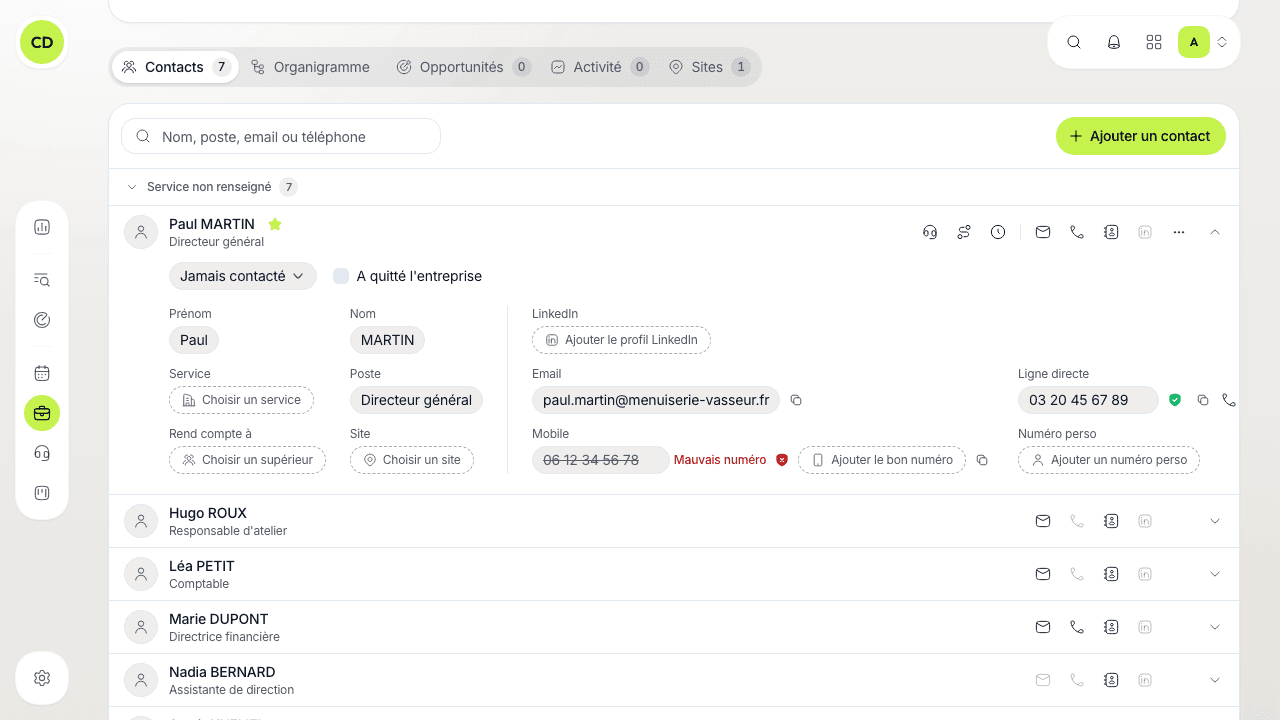
On a company record, contacts are grouped by department; the ones you mark as key come first. Click a row to unfold it:
- on the left, who the person is: first name, last name, department, job title, « Rend compte à » (Reports to) and the site they belong to;
- on the right, how to reach them: LinkedIn, email, « Ligne directe » (Direct line), « Mobile » and « Numéro perso » (Personal number).
As everywhere, you edit a value by clicking it: Enter saves, Esc cancels. A missing value is a dotted invitation (« Choisir un service », « Choisir un supérieur », « Choisir un site », « Ajouter un mobile »). First and last names are required.
The « Numéro perso » is kept for reference: Caryon Lead never dials it and never verifies it. If the person has left the company, tick « A quitté l'entreprise » (Has left the company): nothing can be planned with them any more, and they disappear from the org chart.
The star after the name marks a key contact — someone who matters in the company. A click turns it on or off; it applies to the whole team.
Reliable numbers: shields and the right number
Each phone number carries two shields:
| Shield | Meaning |
|---|---|
| « Marquer comme vérifié » (Mark as verified) | You reached the person on this number. It comes first when you call. |
| « Signaler un mauvais numéro » (Report a wrong number) | The number does not answer or is no longer right. It is struck out, marked « Mauvais numéro », and Caryon Lead no longer dials it. |
The two marks exclude each other. When a number is reported wrong, a field « Ajouter le bon numéro » (Add the right number) appears right beside it: type the right one and it replaces the old one.
To call, Caryon Lead picks in this order: a verified number (direct line before mobile), otherwise the direct line, otherwise the mobile, otherwise the switchboard of the person's site. See also the call queue.
Consent
Each contact has a consent state, picked in place at the top of their unfolded record:
- « Jamais contacté » (Never contacted): the starting state;
- « A répondu » (Has replied): it switches to this state by itself when you log an exchange that succeeded, for example a meeting booked;
- « Ne plus contacter » (Do not contact): the person asked not to be approached any more.
« Ne plus contacter » is final
A person marked « Ne plus contacter » shows with a badge, and you can no longer call them from Caryon Lead, or plan a call, an email, a message, a follow-up, prospecting or a sequence with them. The choice cannot be undone: it protects your GDPR compliance.
The contact's feed and the row's icons
Each row carries icons, each named in its tooltip:
- always visible: « Écrire » (Write, an email draft), « Appeler » (Call, with the number and its type in the tooltip), « Enregistrer dans le répertoire » (Save to contacts: a QR code to scan with a phone and a file to download), « Profil LinkedIn »;
- on hover: « Mode prospection » (puts a call in your queue, or « Déjà en prospection » — Already in prospecting — if one is waiting) and « Séquence de prospection » (see sequences);
- « Historique » (History), with the number of actions done in a pill: the contact's feed, meaning their upcoming actions, then their exchanges day by day and the movements of the opportunities they are in;
- the ⋯ menu: « Nouvelle action » (New action), then « Supprimer le contact » (Delete the contact, after confirmation).
An icon without its data (no email, no number) stays greyed out and its tooltip says what is missing (« Email non renseigné »).
Add a contact
In the « Contacts » tab of a company record, click « Ajouter un contact » and fill in the row that opens (see the company record). From the portfolio, the add window first asks you to « Choisir l'entreprise » (Pick the company). The contact is attached to the head office unless you pick another site (or « Aucun site en particulier » — No particular site). You can also create contacts from LinkedIn with the extension, or import them from a file with the import.
A question not answered here? Write to us at contact@caryon.app.