Prospect with the call queue
Schedule your prospecting calls, work through them in the queue or in a session, and let Caryon Lead schedule what comes next.
The prospecting queue gathers today's calls and those due earlier. Open it from the Caryon Lead menu: « Prospection » (headset icon).
Put a call in the queue
A prospecting call joins your queue in two ways:
- From a contact: on a company's record, « Contacts » tab, click the headset icon « Mode prospection » (Prospecting mode) on the contact's line, pick a day (« Aujourd'hui » — today — by default), add the context of the call if you like, then « Ajouter à ma file » (Add to my queue). If the contact is already in the queue, the icon reads « Déjà en prospection » (Already in prospecting).
- From the Radar: open a company and click « Mettre en file d'appels » (Add to the call queue, key F): the company's switchboard joins your queue at the next half hour, and the reasons for its score are kept as notes. The arrow to the right of the button (« Choisir qui et quand » — Choose who and when) opens a sentence to pick the person, the day and the time. A message offers « Annuler » (Undo).
The call shows up in the queue on the planned day. A call scheduled with « Nouvelle action » in the Agenda is an ordinary call: it lives in the Agenda, not in the queue.
Make the calls from the queue
Each call is a full card: the person, their company and job title on the left, the number in bold at the top right, the notes below. You can handle any card, in any order.
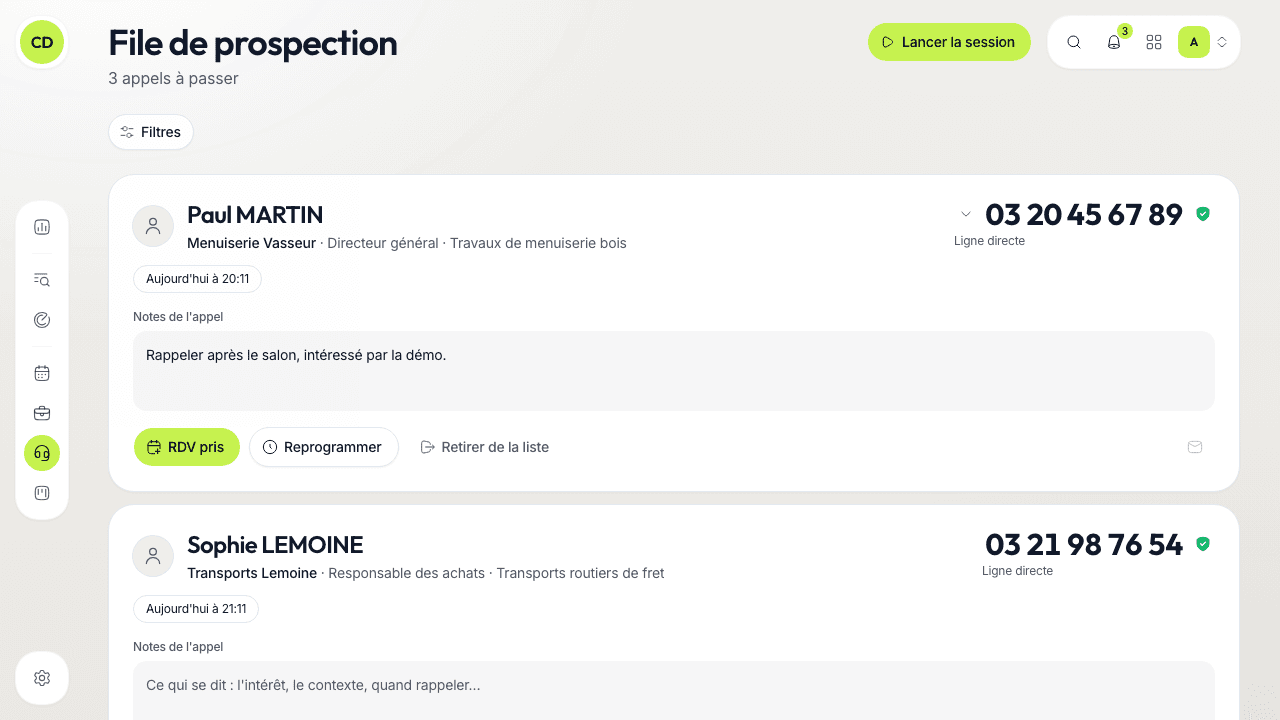
- Call — click the number: your phone or calling software dials it, and the call is logged in the history. Nothing else to click if nobody answers.
- Another number — under the number, a line says what it is (« Ligne directe » — direct line, « Mobile », « Standard » — switchboard). When the person has other numbers, the arrow to the left of the number (tooltip « Tous les numéros » — All numbers) lists them, with their site's switchboard.
- Wrong number — to the right of the number, the small shield with a cross (« Signaler un mauvais numéro » — Report a wrong number) strikes it out: the next number moves to the top. Click the cross of a struck-out number to undo. The shield with a check marks a number as verified.
- Take notes — type during the call in « Notes de l'appel » (Call notes): they are saved as soon as you leave the field.
Then, at the bottom of the card, choose what comes next:
| Gesture | What happens |
|---|---|
| « RDV pris » (Meeting booked) | Pick a slot: the meeting is scheduled with the person, with your notes. The call leaves the queue. |
| « Reprogrammer » (Reschedule) | Pick a day (tomorrow, the day after, Monday, in a week, or another date): the call comes back that day, at the same time. |
| « Retirer de la liste » (Remove from the list) | The call is cancelled and leaves the queue. The contact stays in Caryon Lead. |
After each gesture, a message offers « Annuler » (Undo) for 5 seconds.
The order of the queue
The oldest calls come first, two calls to the same company one after the other. A call already tried today moves to the end on the next load. « Filtres » (Filters) keeps only some « Tags » or « Secteur d'activité » (business sector), and sets the « Ordre » (Order): « Date prévue » (Planned date, the default) or « Plus récents » (Most recent — the last scheduled calls first).
Chain calls in a session: « La pile » (the stack)
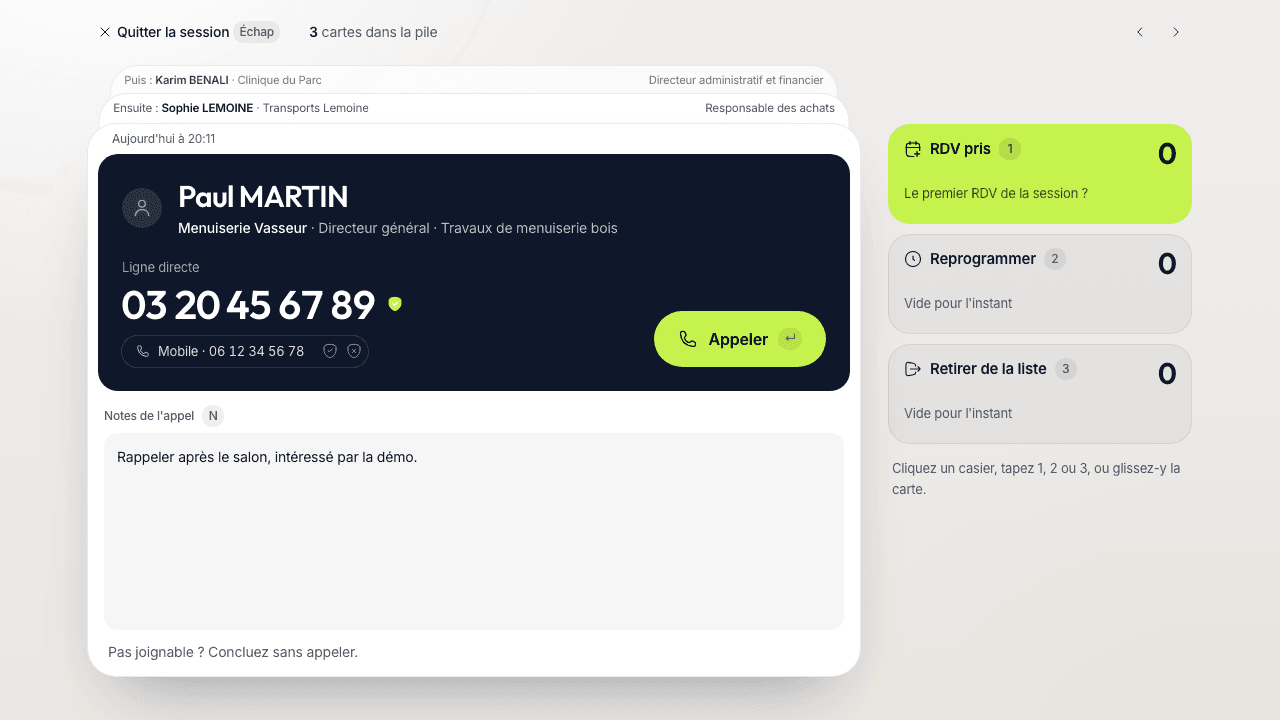
For a run of calls without distraction, click « Lancer la session » (Start the session). The queue's calls form a stack of cards, full screen:
- « Appeler » (Call) dials the number; a timer shows the length of the call, as a guide only.
- Take notes during the call, then « Appel terminé » (Call ended).
- Drop the card in one of the three trays — « RDV pris », « Reprogrammer », « Retirer de la liste » — with a click, the keys 1, 2, 3, or by dragging it.
The ← and → arrows (at the top of the screen, or on the keyboard) move from one card to another to come back to it later. When the stack is empty, a summary shows what became of each call. « Quitter la session » (Leave the session) (key Esc) takes you back to the queue at any time.
Keyboard shortcuts
| Key | Action |
|---|---|
| J / K | Next / previous card in the queue |
| Enter | Call the card's number |
| N | Go to the notes |
| R | Reschedule |
| 1 · 2 · 3 | The three gestures, in a session |
| ⌘Z | Undo the last gesture, in a session |
The ? key lists every shortcut of the screen.
Go further
A question not answered here? Write to us at contact@caryon.app.